All work

SnapGrid · Web and mobile app

A web app for the office and a phone app for the crew, built for home-service companies. Ask customers for photos the moment a job is done, reward the ones you approve, and publish them with consent attached.
Role

Lead product designer

Product

SnapGrid web and mobile app

Platform

Web and iOS

People

Owner, crew, homeowner

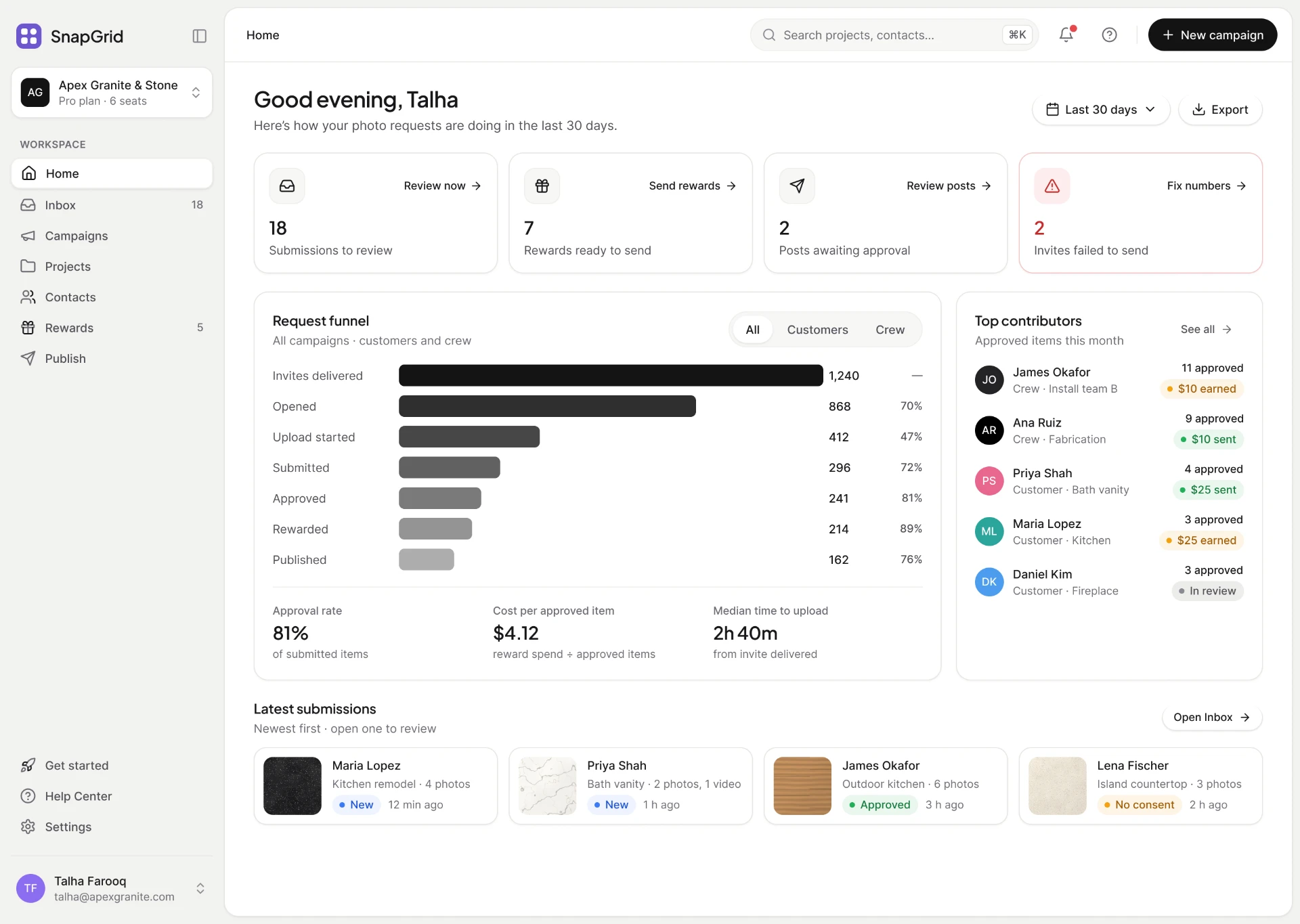
The SnapGrid web app on Home: counts for submissions to review, rewards to send, posts awaiting approval and invites that failed to send, a request funnel from invites delivered through to published, approval rate, cost per approved item and median time to upload, top contributors, and the latest submissions.
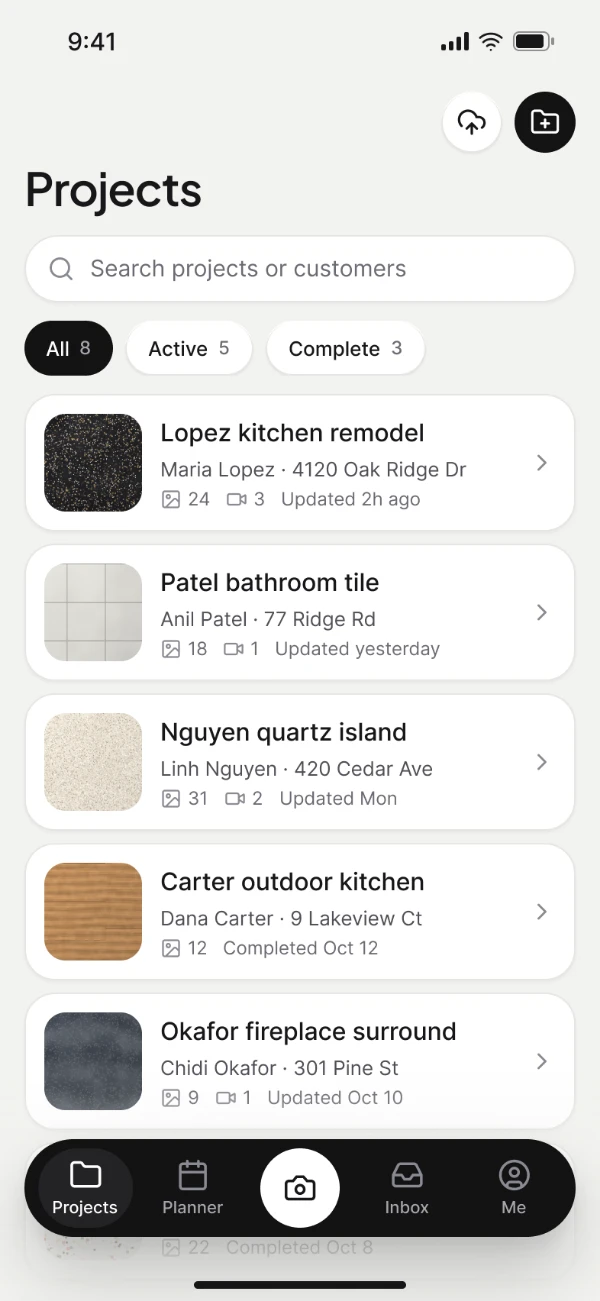
The SnapGrid crew app on Projects: a search field, filters for all, active and complete, and a list of jobs with their customer, address, photo and change counts.

Problem

The best proof of a finished job lived in customers’ camera rolls and crews’ phones, with no consent and no route to the website.

My role

Lead product designer. The office web app, the crew’s iOS app and the design system they share.

What changed

One loop from the job site to the feed: capture, ask, review, reward, publish. Each step works on the screen where it happens.

Result

A web app and an iOS app on one design system, with the failure states designed as carefully as the happy path.

Maria’s kitchen, install to Instagram
The crew app camera on the current job, with the shot list for the island.
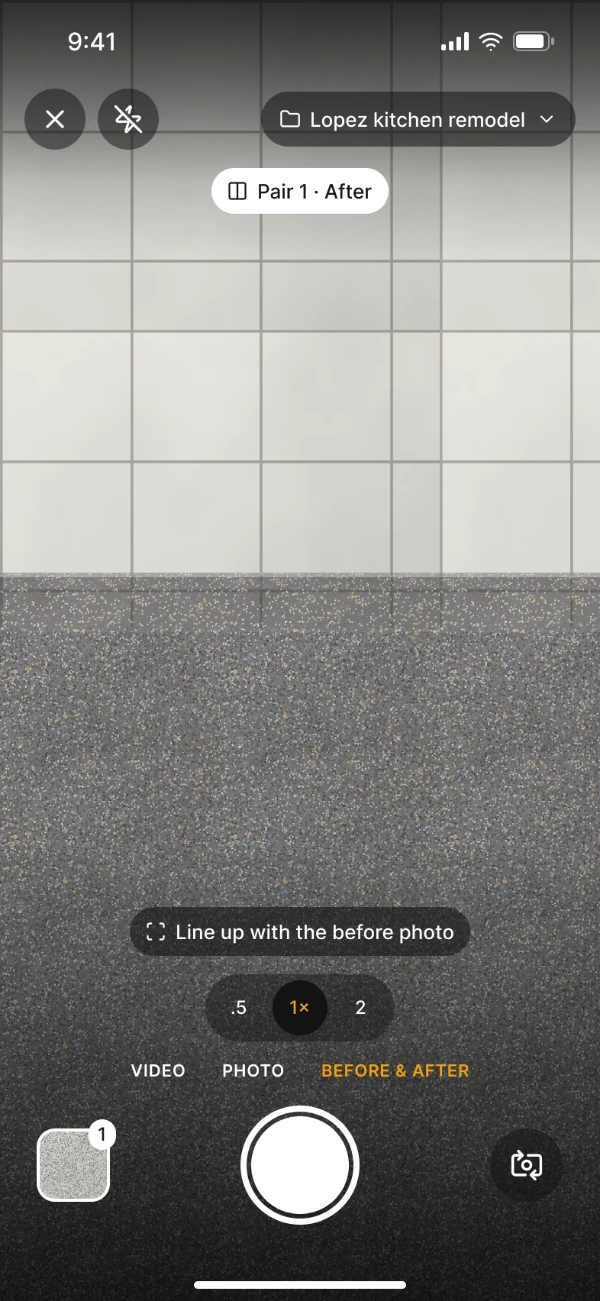
The camera lining the after shot up against a faded ghost of the before shot.
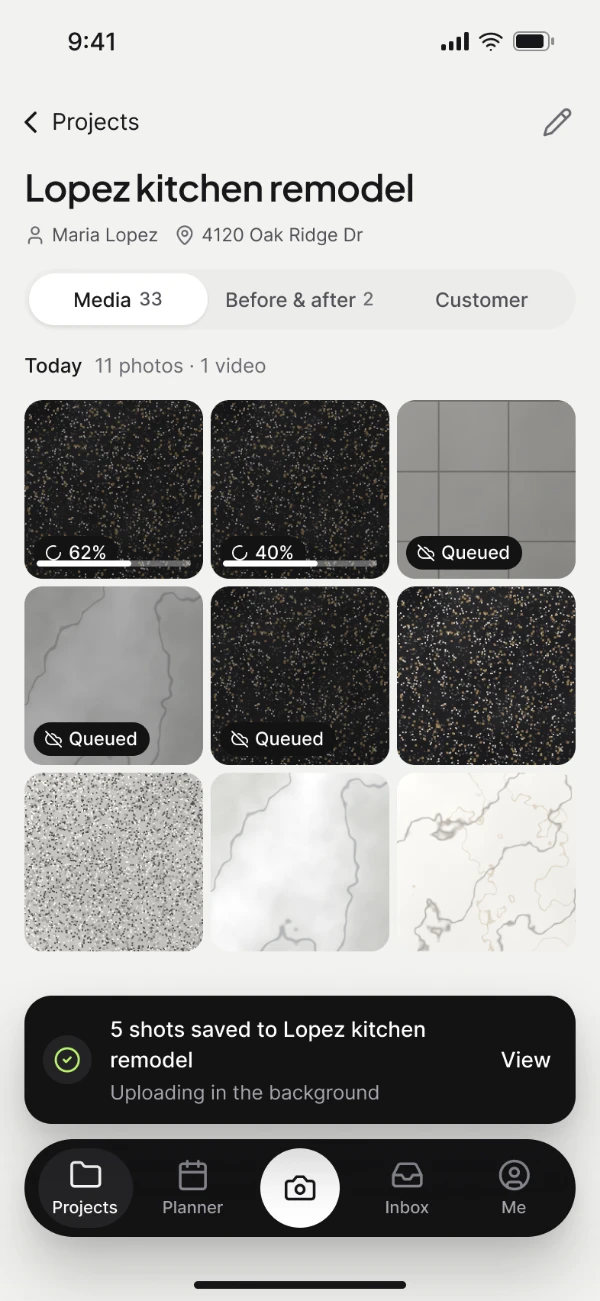
The job’s photo set after shooting, with uploads continuing in the background.
2:14 PM · Capture. The camera opens on the current job. The after shot lines up with a ghost of the before, and uploads carry on in the background.
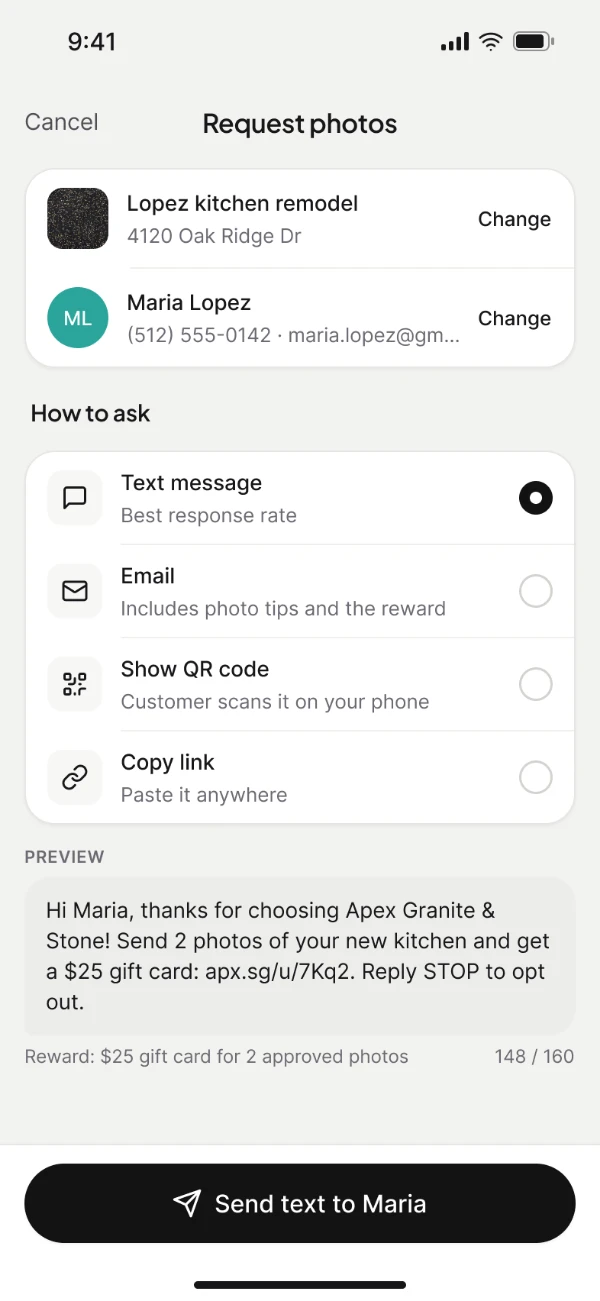
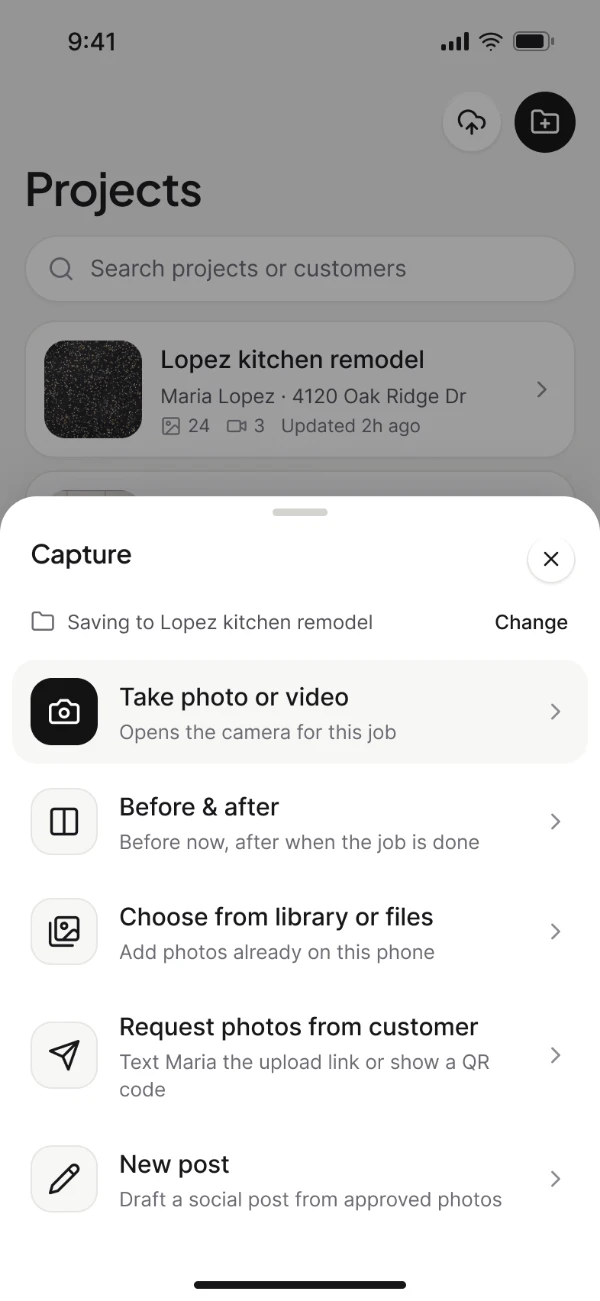
Choosing how to reach the customer: text message, email, QR code or a copied link.
The request preview showing exactly what the customer will receive, reward included.
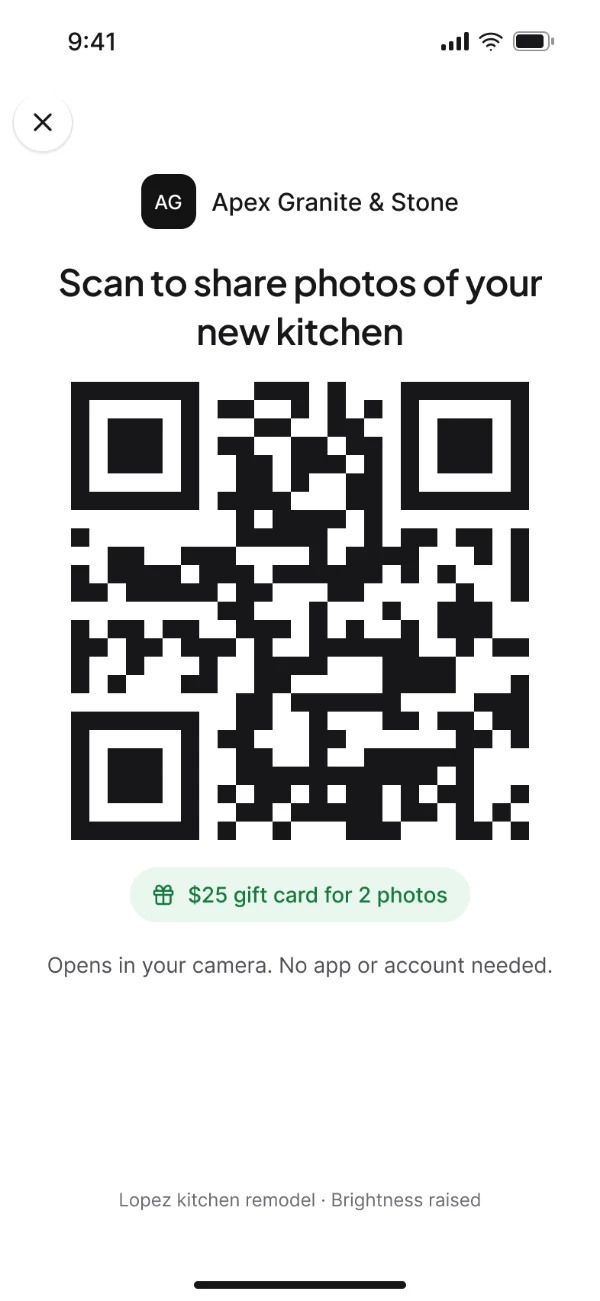
A QR code for the customer to scan when the crew is still on site.
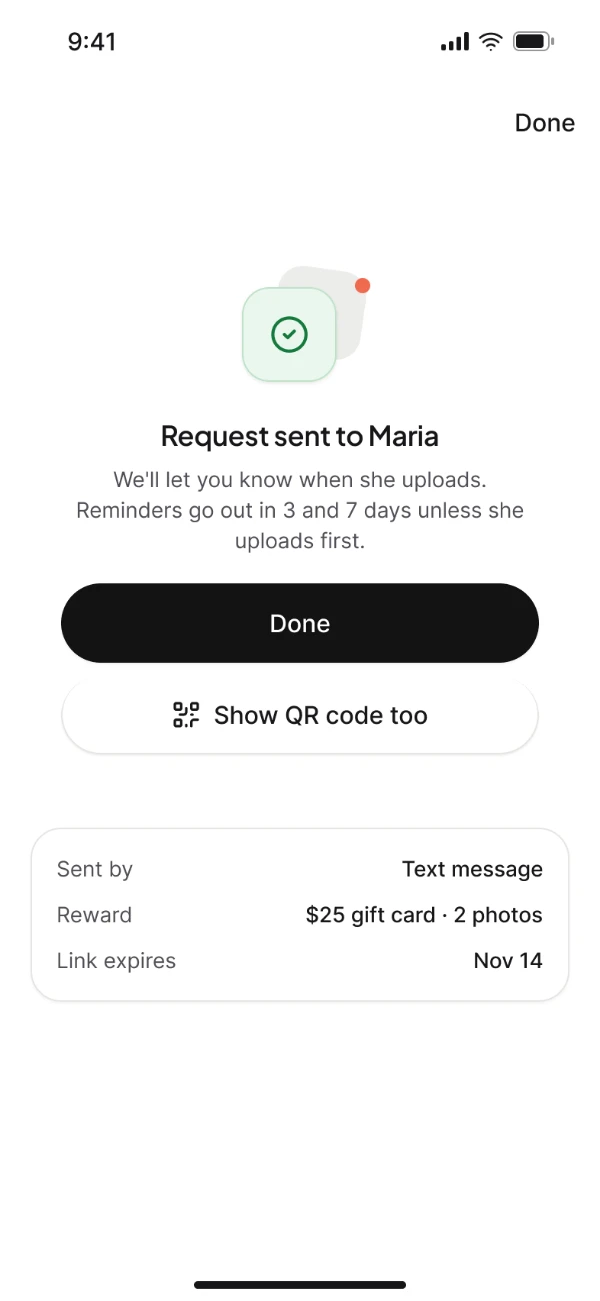
2:20 PM · Ask. Text, email, QR code or a link. The preview shows exactly what Maria will get, reward included.
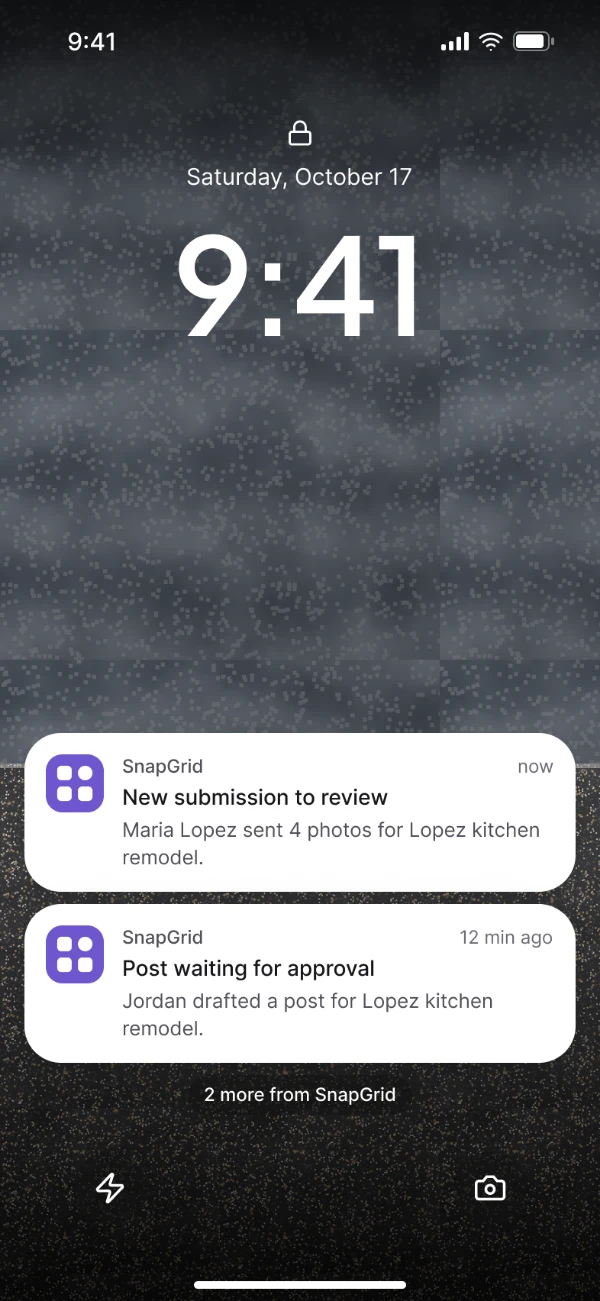
A lock screen notification that photos have arrived from the customer.
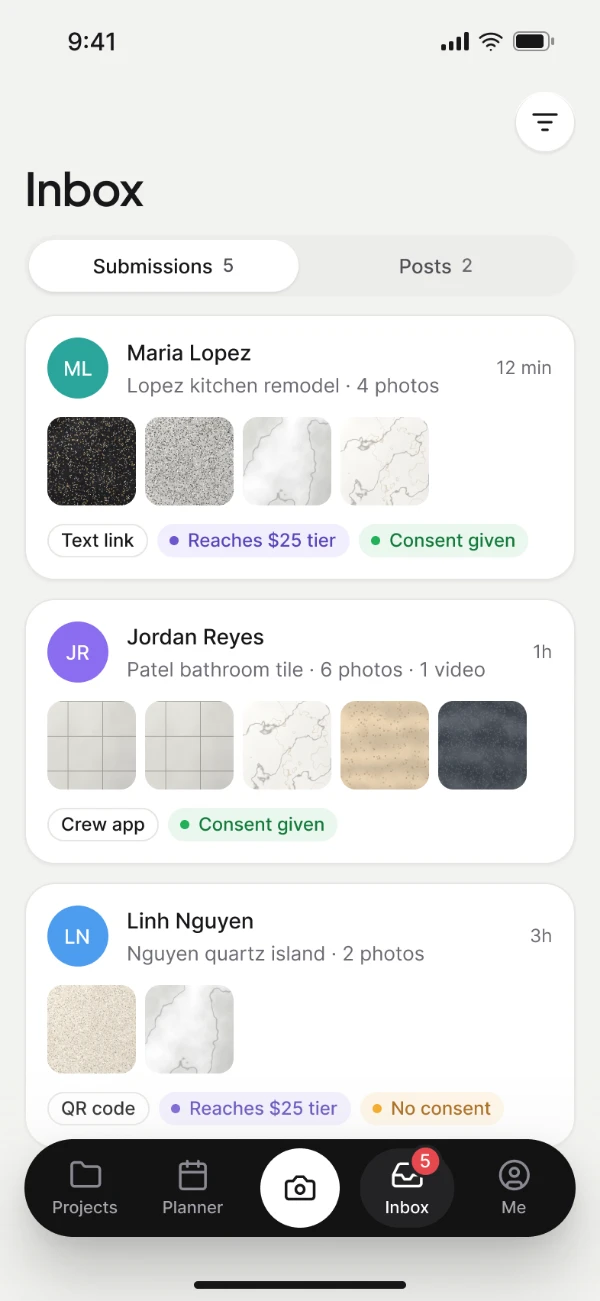
The manager’s inbox on the phone, with the new submission at the top.
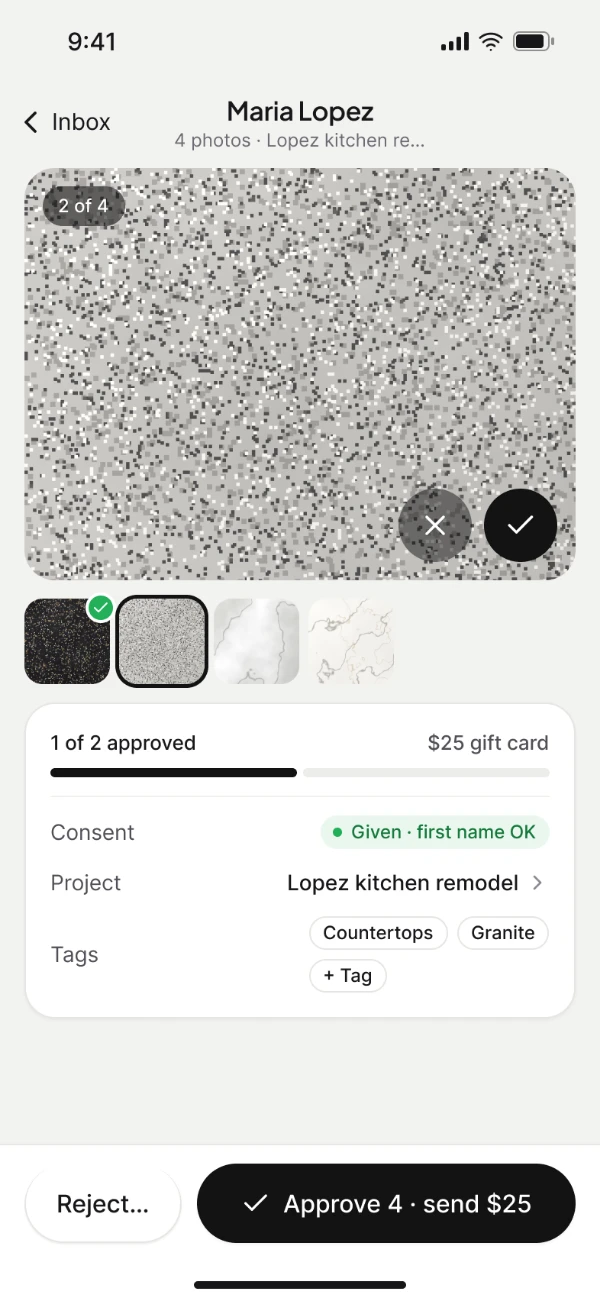
The uploaded photos opened on the phone, ready to approve or send back.
7:02 PM · Upload. Maria uploads from the link. The manager gets a push and can review it from the phone.
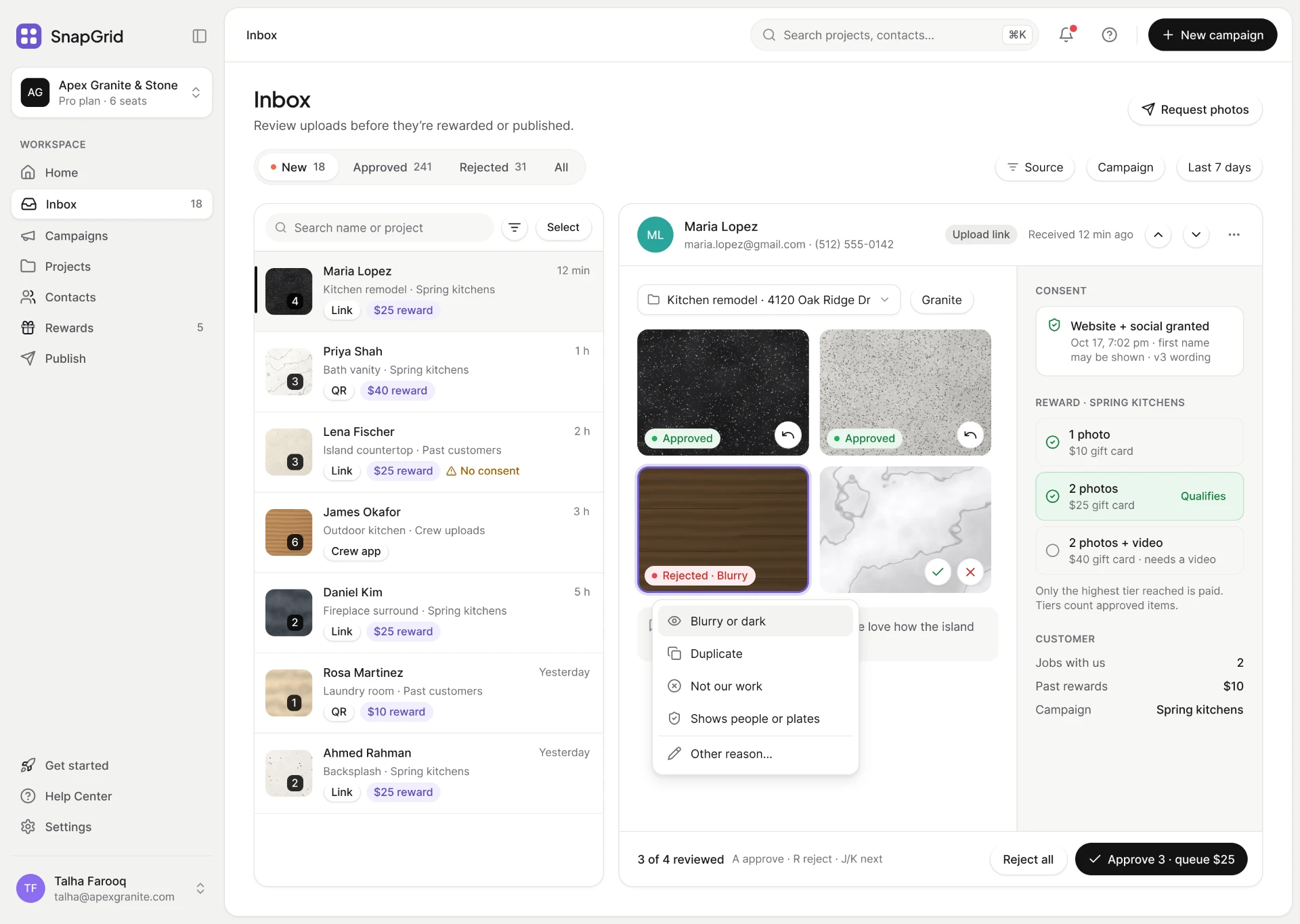
The web app inbox reviewing Maria Lopez’s kitchen remodel: four photos, two approved, one rejected as blurry with the reason menu open, consent recorded for website and social, and the reward tiers beside them with Approve 3 and queue $25.
7:15 PM · Review. Each photo is approved or sent back with a reason. Consent and the reward tier sit beside the photos.
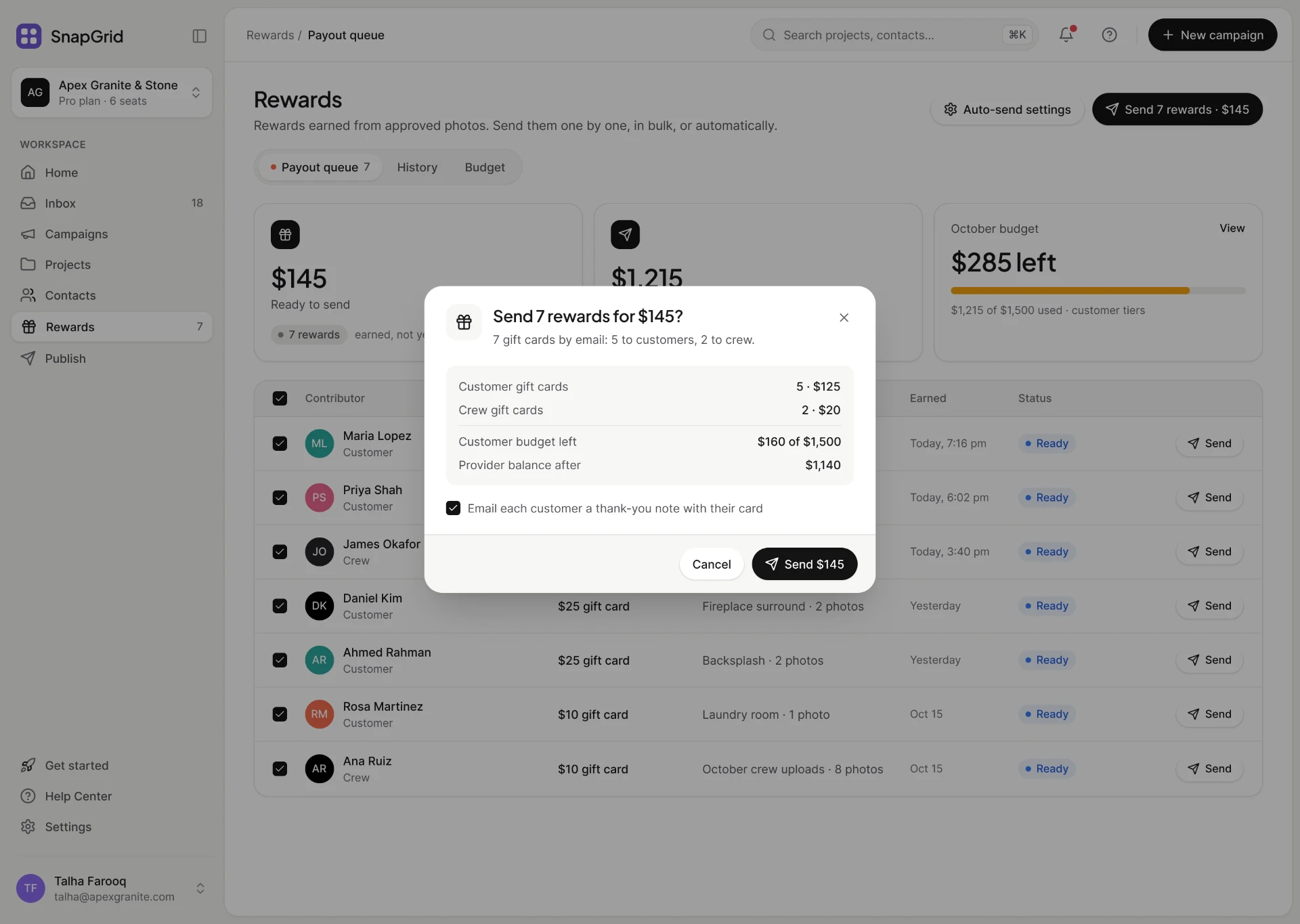
The rewards screen with the queue of earned rewards, the amount already sent, the budget left, and a confirmation before any money moves.
7:16 PM · Reward. Rewards wait in one queue and go out together. The budget left is shown before any money moves.
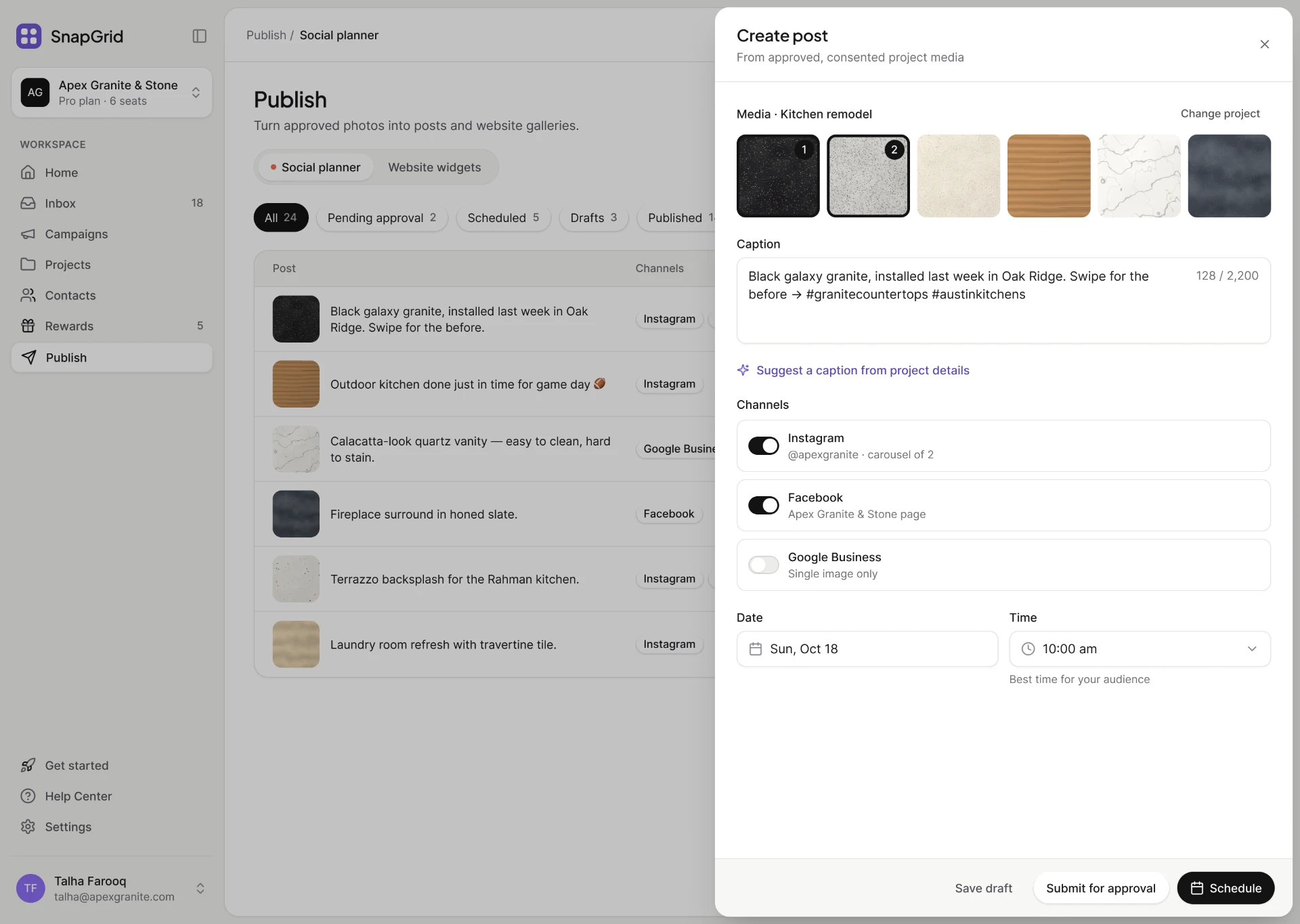
The publish screen composing a post from approved photos, with the consent state shown on each and a scheduling panel for when followers are most active.
SUN 10:00 AM · Publish. Only approved photos with consent can be picked. The post goes out when followers are most active.

The rest of the loop

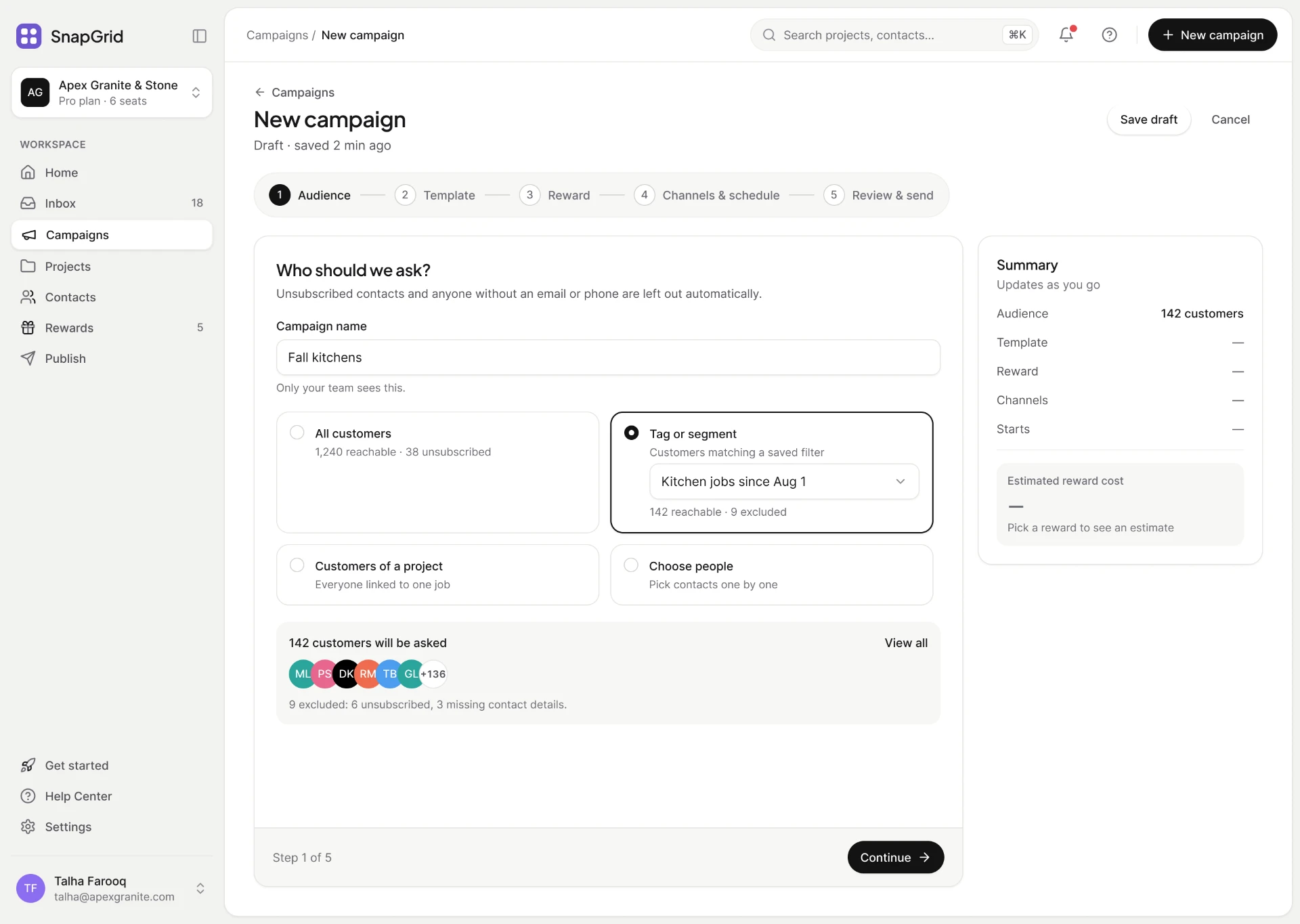
The new campaign builder on its audience step, with the steps for audience, template, reward, channels and schedule across the top, and a running summary and cost estimate beside it.
One campaign, five steps Audience, template, reward, channels, send. The summary and the cost estimate update as you go.
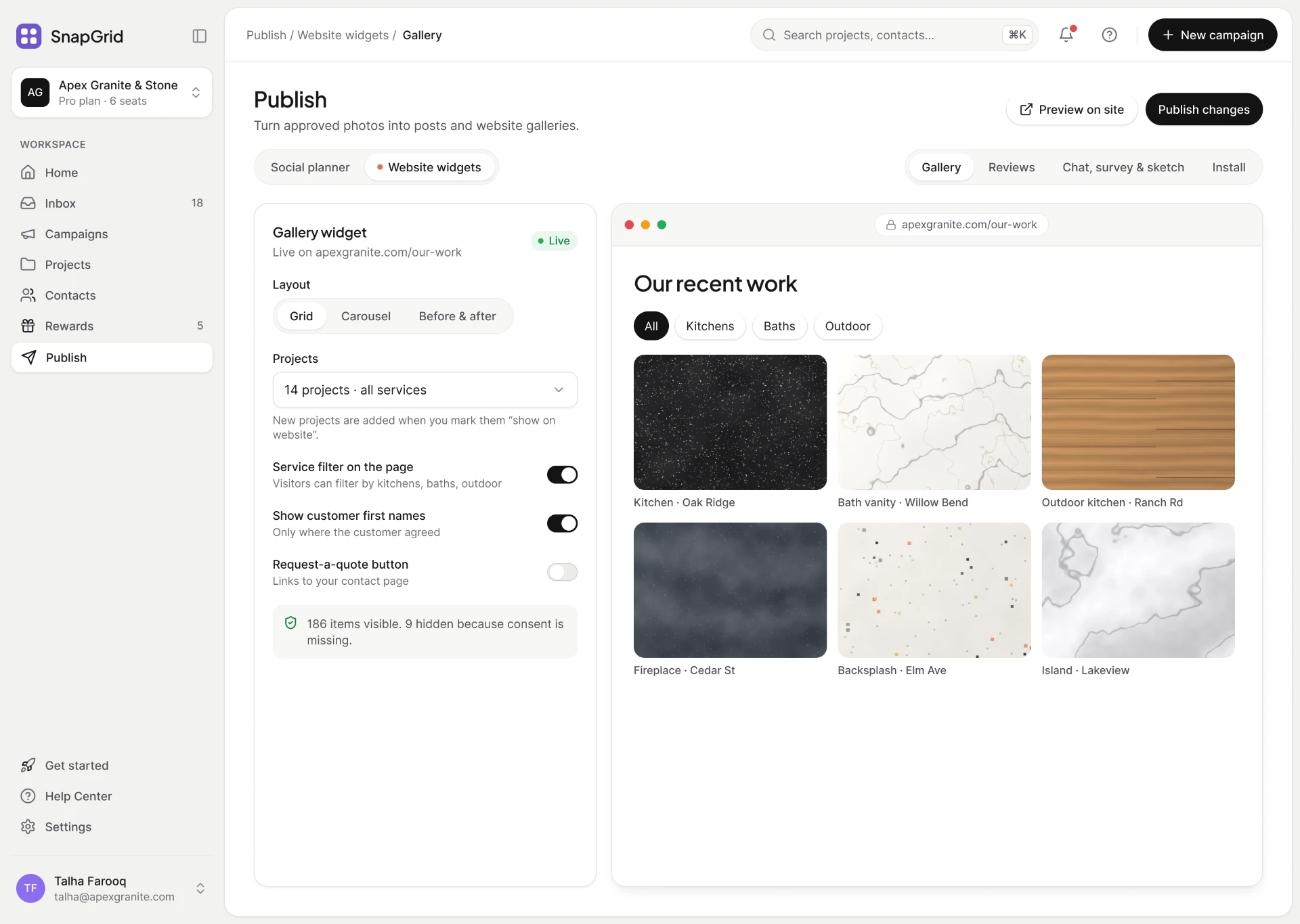
The publish screen’s website widget settings beside a live preview of the gallery on the company’s own site, with layout and filter options.
The website gallery Approved, consented photos on the company’s own site, filtered by service.
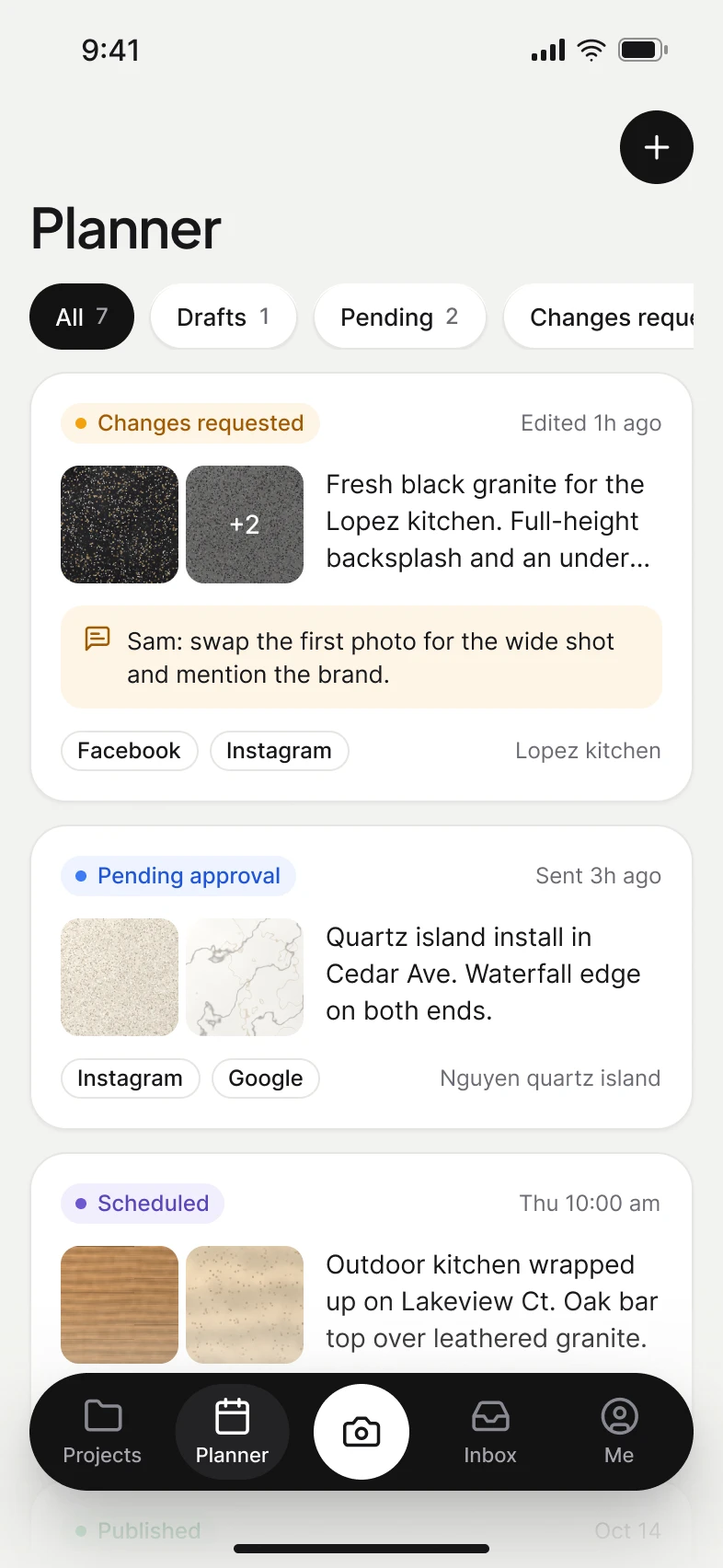
The crew planner listing jobs by state: changes requested, pending approval and scheduled.
Crew planner Drafts, pending and changes requested, in one list.
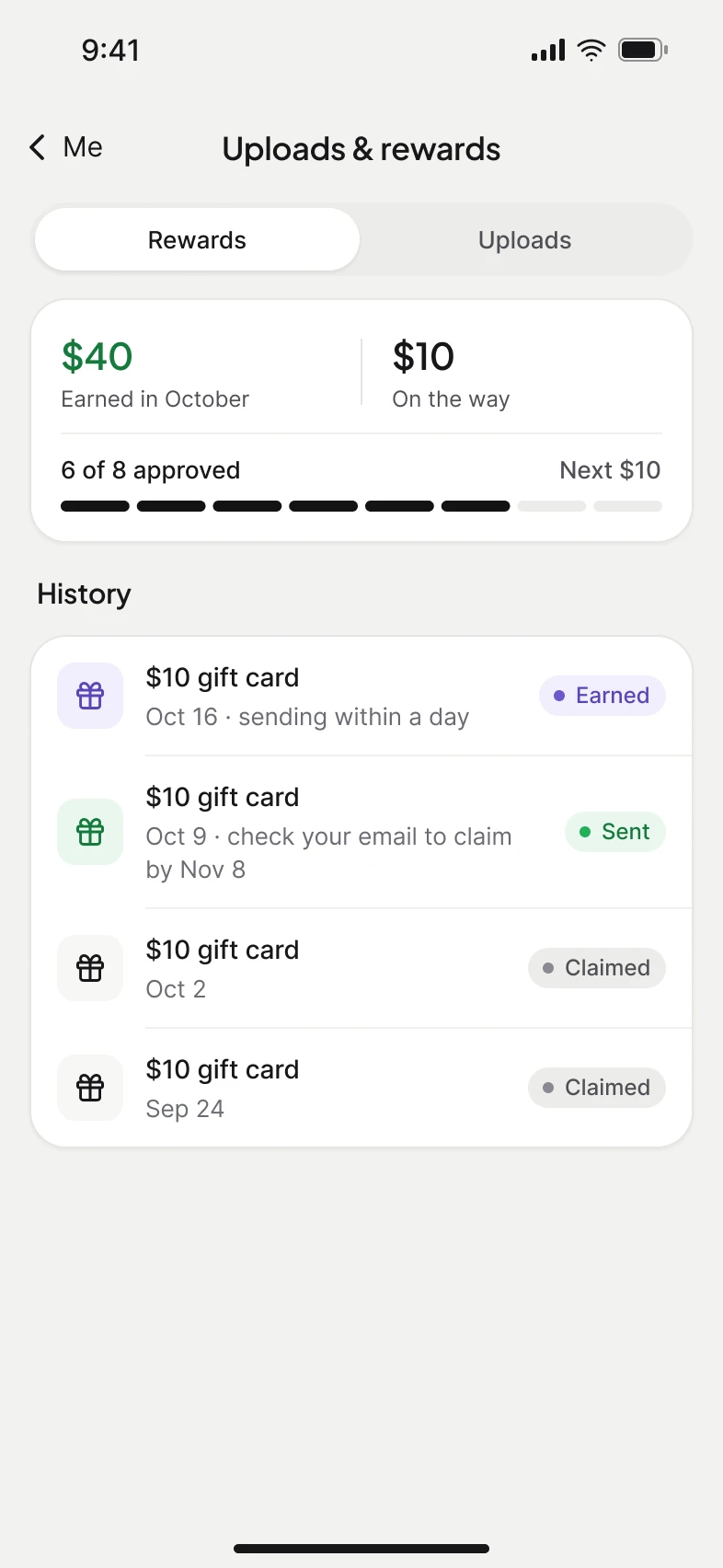
The crew rewards screen with the amount earned, the amount on the way, progress towards the next gift card, and the reward history.
Crew rewards Every 8 approved photos earns a $10 gift card. Progress stays in view.
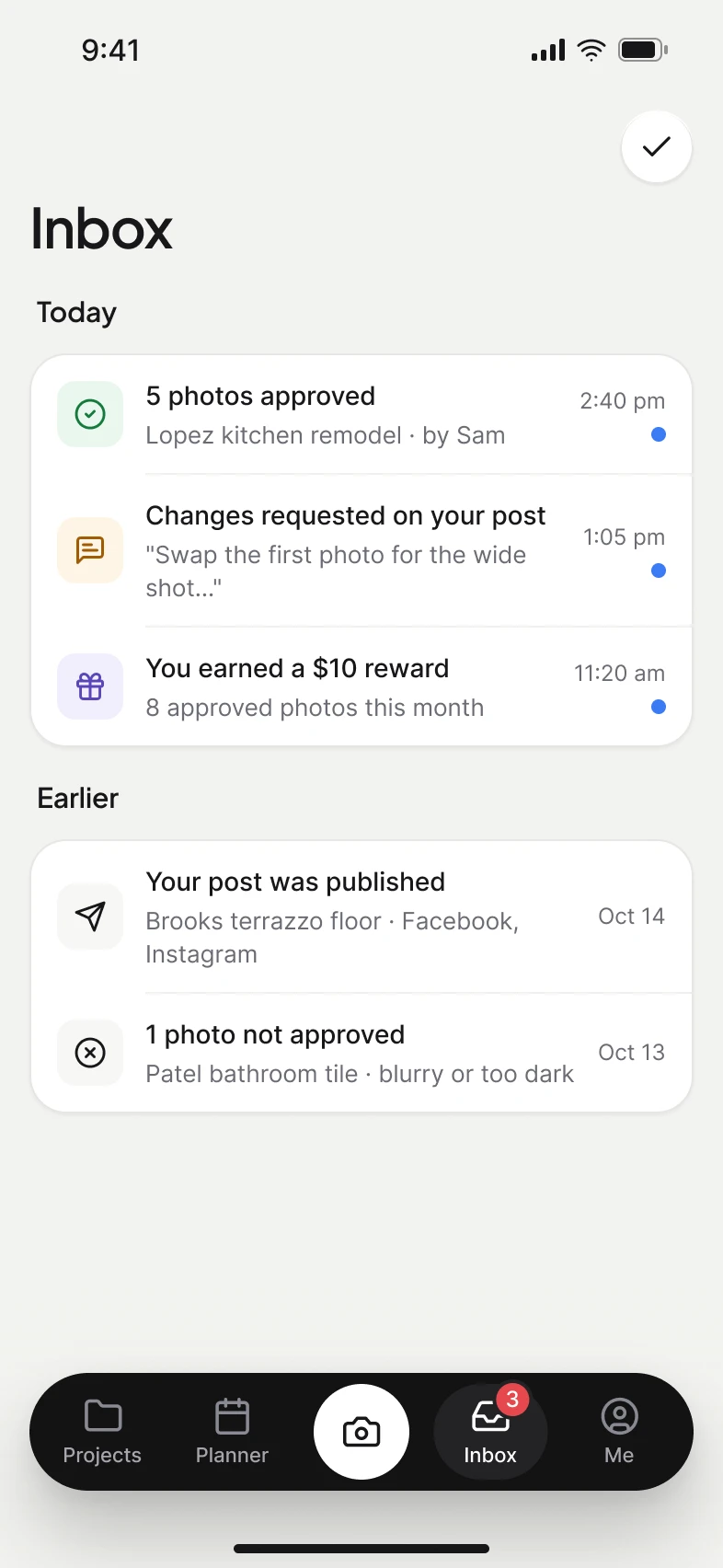
The crew inbox listing approvals, change requests and rewards as they happen, newest first.
Crew updates Approvals, change requests and rewards, as they happen.
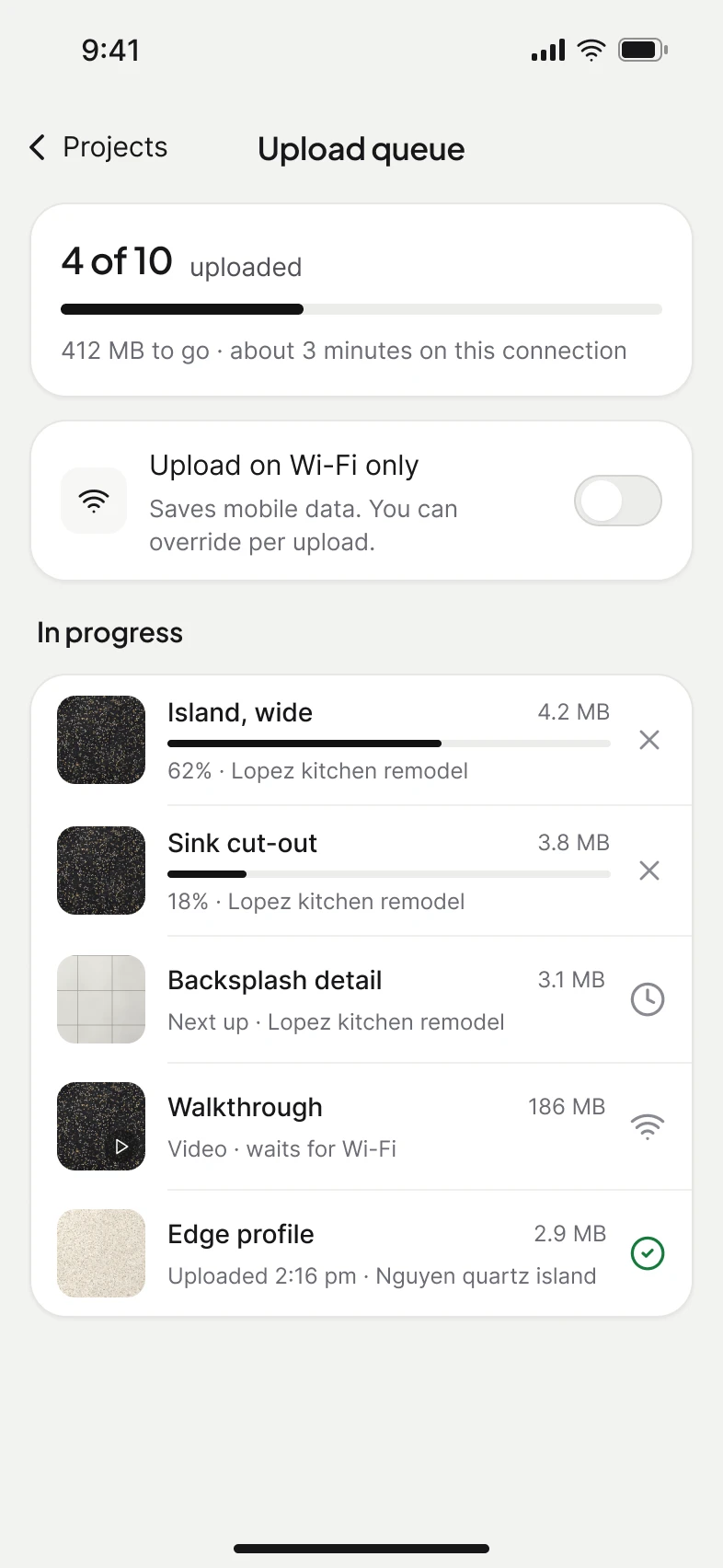
The upload queue showing how many items have uploaded, a Wi-Fi only switch, and each item in progress with its size and its project.
Upload queue Videos can wait for Wi-Fi. Every item shows its progress and its project.

When it fails, nothing is lost

Most of the screens in this project are not the happy path. Every failure has a cause, a reassurance and a way out.
01 Reassure first Say what’s safe before asking for a retry.
02 Warning, not error When the system fails, the user didn’t. Amber, not red.
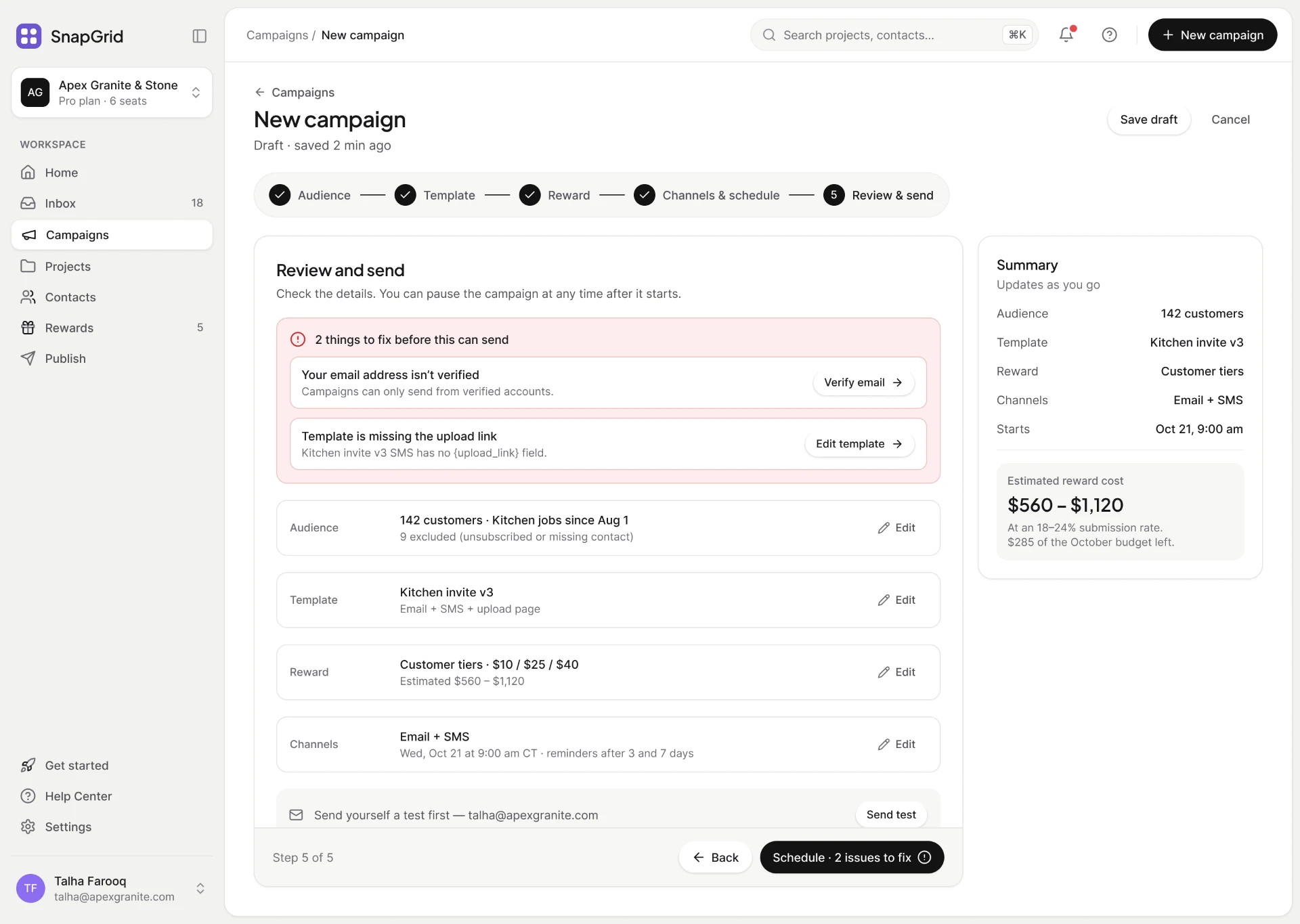
03 No dead buttons Blocked buttons say what’s left, like 2 issues to fix.
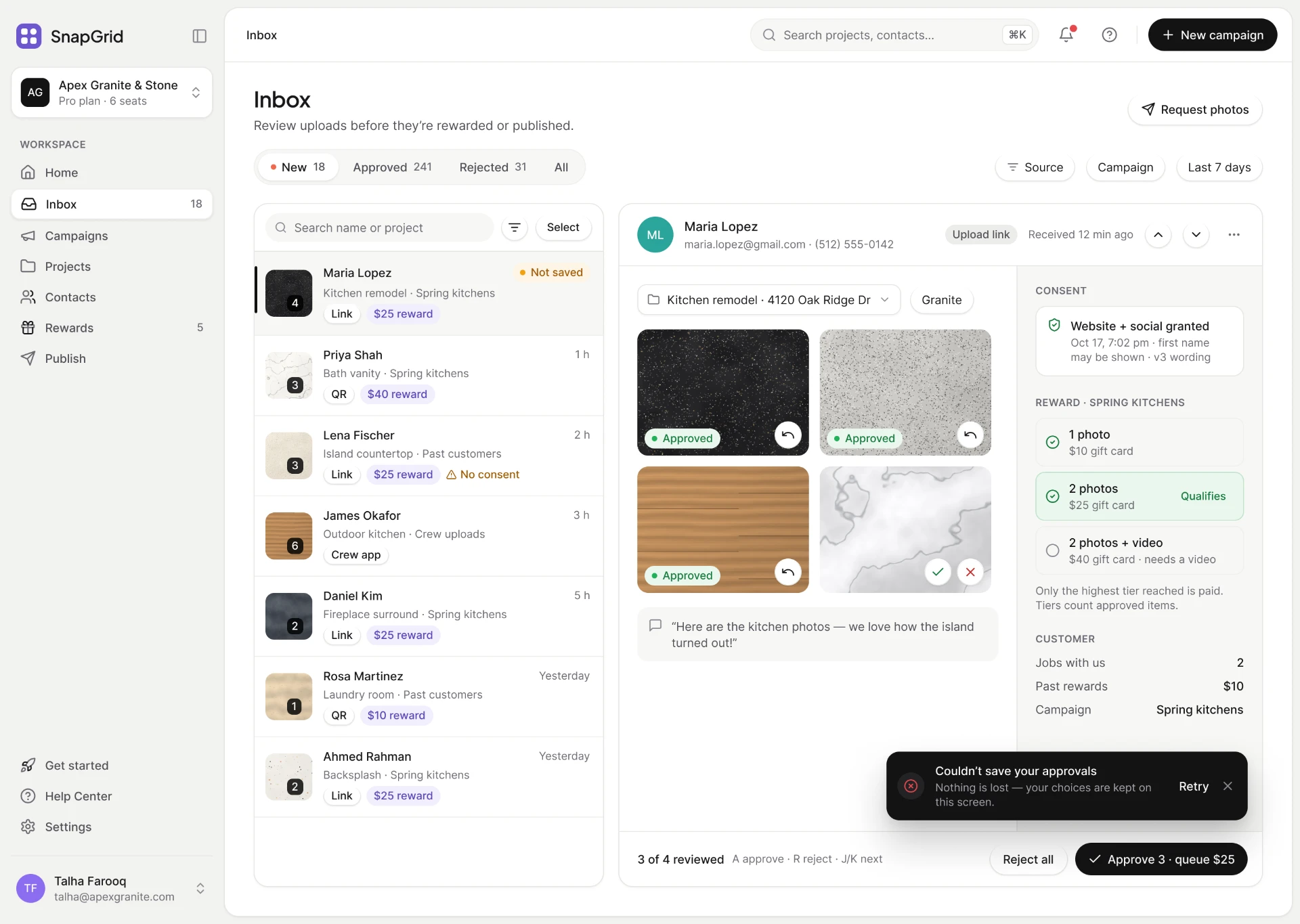
The inbox after a save failed: the approvals stay on screen marked Not saved, with a dark message explaining the save did not go through and a Retry button beside it.
INBOX · Couldn’t save. Approvals stay on screen, marked Not saved, with Retry one click away. Nothing is lost.
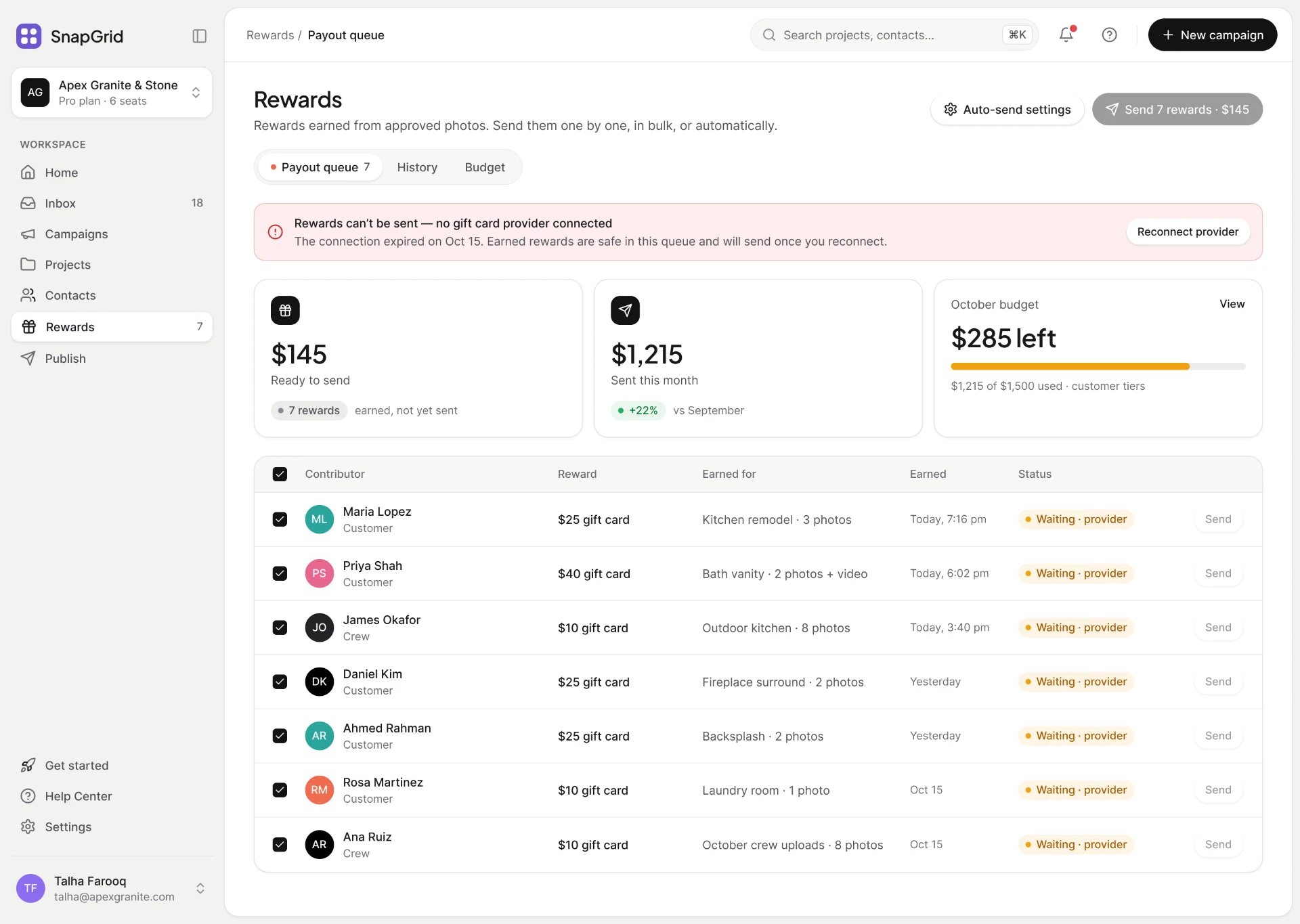
The rewards screen with the payout provider disconnected: earned rewards keep queueing, the amount held is shown, and reconnecting releases them.
Provider disconnected Rewards keep queueing. Reconnecting releases them, and nothing earned is lost.
The campaign builder with sending blocked: the send button names how many issues remain, and each issue links straight to the field that fixes it.
Send blocked The button names the count, and each issue links straight to its fix.
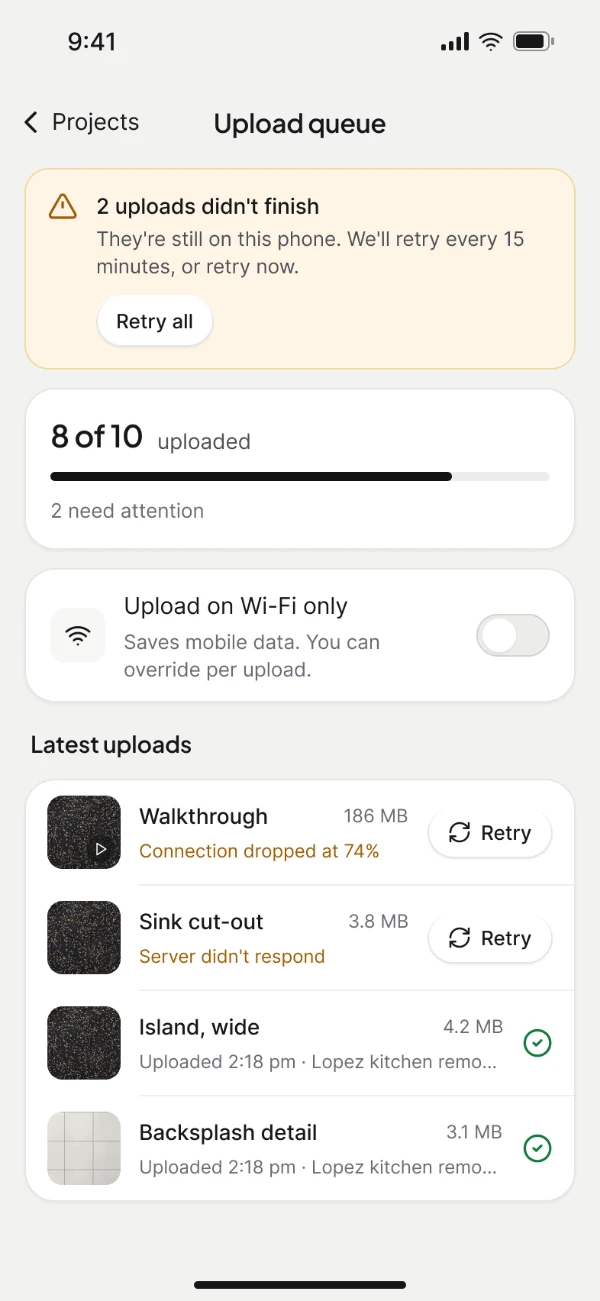
The upload queue with uploads that did not finish, explaining why and offering Retry on each.
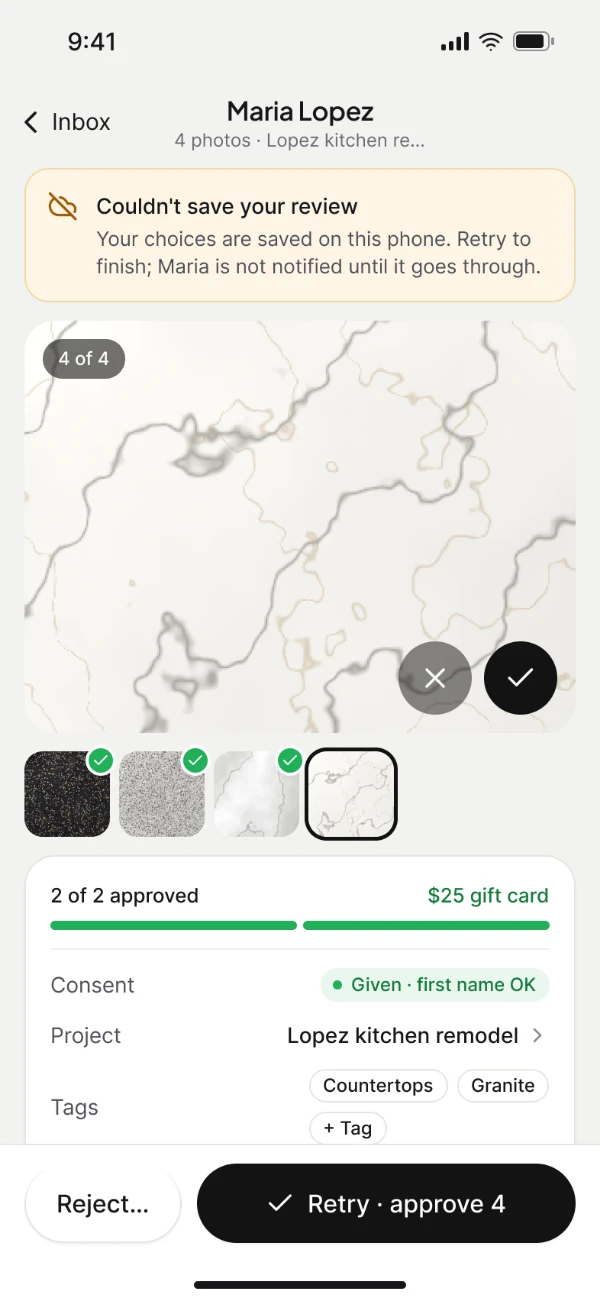
A review on the phone that did not save, keeping the approvals on screen with Retry beside them.
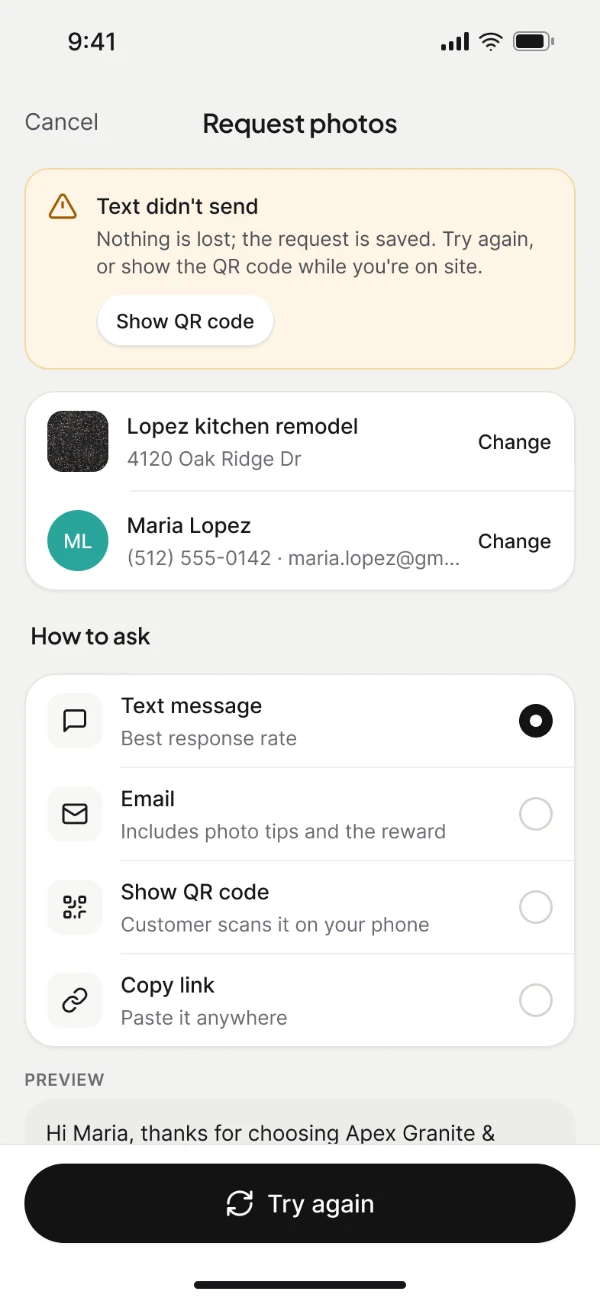
A photo request that did not send, listing the ways to ask again and a Try again button.
ON THE PHONE · Uploads that didn’t finish, a review that didn’t save, a text that didn’t send. Each one keeps the work and puts the next step in reach.

Building B2B SaaS with complex workflows or AI features?

Send me the screen, or the idea. I’ll reply with what I’d do first.

Get in touch

Next case study Turning a phone call into a priced offer B2B quoting · Q2 2025